
Configuration Presets Guide
Advanced DataLayer Tracker – Quick Setup with Pre-Configured Templates
Configuration Presets are ready-to-use template configurations that instantly set up your tracking for common use cases. Instead of manually configuring dozens of settings, import a preset matched to your business type and start tracking in minutes.
Table of Contents
- Overview
- Available Presets
- How to Import a Preset
- Preset Details
- After Import Setup
- Customizing Presets
- Comparison Table
- Best Practices
Overview
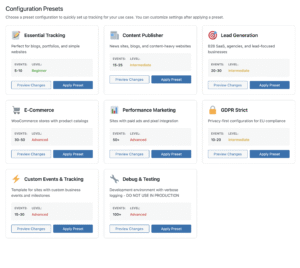
What Are Configuration Presets?
Configuration Presets are pre-built JSON configuration files that enable all the right tracking features for specific business types. Each preset has been carefully crafted based on real-world tracking needs.
Benefits:
- Save Time: Import takes 30 seconds vs. 30 minutes of manual configuration
- Best Practices Built-In: Each preset follows industry standards
- Optimized for Your Business: Matched to your specific tracking needs
- Easy to Adjust: Use as starting point, customize as needed
- No Guesswork: Features are pre-selected based on what actually works
When to Use Presets
Use presets when:
- Starting fresh installation
- Migrating from another analytics solution
- Testing different tracking configurations
- Setting up client sites quickly
- Creating consistent multi-site configurations
Available Presets
1. Essential Tracking (Minimal)
Best For: Blogs, portfolios, simple websites
What It Tracks:
- Page views and navigation
- Basic scroll depth
- Form submissions
- UTM parameters
- User identification
Data Volume: Low (5-10 events per session)
When to Choose:
- Simple content sites
- Personal blogs
- Portfolio websites
- Sites focused on content, not conversions
2. Content Publisher (News/Blog)
Best For: Content-heavy sites, news sites, online magazines
What It Tracks:
- Reading behavior and engagement
- Content performance metrics
- Scroll patterns and depth
- Video consumption
- Section-level engagement
- Content categorization
Data Volume: Medium (15-25 events per session)
When to Choose:
- News and media sites
- Content marketing platforms
- Educational content sites
- Blog networks
3. Lead Generation
Best For: B2B sites, service businesses, consultation sites
What It Tracks:
- Form interactions (start, field focus, submit)
- CTA clicks and exposure
- Hover intent on key elements
- Content engagement
- User journey through funnel
- Cookie-based return visitor tracking
Data Volume: Medium-High (20-30 events per session)
When to Choose:
- B2B service sites
- Consultation businesses
- Software-as-a-Service (SaaS)
- Professional services
4. E-Commerce (WooCommerce)
Best For: Online stores with product catalogs
What It Tracks:
- Product views
- Add to cart actions
- Cart views and modifications
- Checkout steps
- Purchase completion
- Product-level metadata
- User hashing for customer matching
Data Volume: High (30-50 events per session)
When to Choose:
- WooCommerce stores
- Product catalog sites
- Online retail
- Digital product sales
5. Performance Marketing (Advanced)
Best For: Sites running paid advertising with pixel integration
What It Tracks:
- Everything from other presets
- Pixel events for Meta/TikTok/Google Ads
- Advanced ecommerce tracking
- Customer lifetime value signals
- Multi-touch attribution
- Conversion optimization data
Data Volume: Very High (50+ events per session)
When to Choose:
- Heavy paid advertising spend
- Multiple marketing channels
- Advanced attribution needs
- Conversion rate optimization focus
6. GDPR Strict Compliance
Best For: EU-focused sites requiring strict privacy compliance
What It Tracks:
- Anonymous engagement metrics only
- No personal identification
- No cookie tracking
- Consent-gated events
- TCF 2.0 compliant
Data Volume: Low-Medium (10-20 events per session)
When to Choose:
- EU-primary audience
- Healthcare or financial services
- Privacy-focused brands
- Sites requiring strict GDPR compliance
7. Debug & Testing
Best For: Development and troubleshooting environments
What It Tracks:
- Everything with verbose logging
- Debug overlay enabled
- All technical metadata
- Template information
- WordPress flags
Data Volume: Very High + console logs
When to Choose:
- Development environments only
- Troubleshooting tracking issues
- Learning how ADT works
- Testing configurations
Warning: Never use in production!
How to Import a Preset
Step-by-Step Instructions
Step 1: Navigate to Import/Export
WordPress Admin → Settings → Advanced DataLayer Tracker → Settings Tab
Scroll down to the Import / Export Settings section.
Step 2: Choose Your Preset
Visit the Configuration Presets Guide and select the preset that matches your business type.
Step 3: Copy the JSON
Click the copy button or manually select and copy the entire JSON code block for your chosen preset.
Step 4: Paste and Import
- In the Import Settings section, paste the JSON into the textarea
- Click Import Settings button
- Wait for confirmation message
- Click Save Changes at the bottom of the page
Step 5: Verify
Check that your settings have been imported:
- Review the feature checkboxes – they should match the preset
- Check the GTM Export tab – features should be selected
- Visit your site and check the browser console for
[ADT]messages
Preset Details
Essential Tracking JSON
{
  "include_scroll_depth": "1",
  "scroll_event_mode": "depth",
  "include_active_time": "1",
  "include_focus_blur": "1",
  "formVendorTracking": "1",
  "formVendorTracking_mode": "map",
  "include_page_type": "1",
  "include_post_id": "1",
  "include_page_title": "1",
  "include_page_url": "1",
  "include_slug": "1",
  "include_user": "1",
  "include_referrer": "1",
  "include_utm": "1",
  "include_screen_resolution": "1",
  "include_browser_lang": "1",
  "delay_until_consent": "1",
  "debug_mode": "0",
  "debug_level": "quiet",
  "export_gtm_enabled": "1"
}
Content Publisher JSON
{
  "include_scroll_depth": "1",
  "scroll_event_mode": "depth",
  "include_scroll_back_up": "1",
  "include_active_time": "1",
  "include_time_on_page": "1",
  "include_focus_blur": "1",
  "include_video_progress": "1",
  "include_hover_intent": "1",
  "include_content_intelligence": "1",
  "include_last_engaged_section": "1",
  "include_last_content_type_viewed": "1",
  "formVendorTracking": "1",
  "formVendorTracking_mode": "map",
  "include_page_type": "1",
  "include_post_id": "1",
  "include_page_title": "1",
  "include_page_url": "1",
  "include_slug": "1",
  "include_path": "1",
  "include_categories": "1",
  "include_tags": "1",
  "include_user": "1",
  "include_referrer": "1",
  "include_utm": "1",
  "include_screen_resolution": "1",
  "include_browser_lang": "1",
  "delay_until_consent": "1",
  "debug_mode": "0",
  "debug_level": "quiet",
  "export_gtm_enabled": "1"
}
Lead Generation JSON
{
  "include_scroll_depth": "1",
  "scroll_event_mode": "depth",
  "include_active_time": "1",
  "include_time_on_page": "1",
  "include_focus_blur": "1",
  "include_hover_intent": "1",
  "include_cta_exposure": "1",
  "include_content_intelligence": "1",
  "formVendorTracking": "1",
  "formVendorTracking_mode": "map",
  "include_field_tracking": "1",
  "track_default_clicks": "1",
  "include_page_type": "1",
  "include_post_id": "1",
  "include_page_title": "1",
  "include_page_url": "1",
  "include_slug": "1",
  "include_user": "1",
  "include_user_hash": "1",
  "user_hash_mode": "sha256",
  "include_referrer": "1",
  "include_utm": "1",
  "include_cookies": "1",
  "cookieMatchRegex": "^(utm_|ga|adt_|_gcl_|_fbp)",
  "include_screen_resolution": "1",
  "include_browser_lang": "1",
  "delay_until_consent": "1",
  "debug_mode": "0",
  "debug_level": "quiet",
  "export_gtm_enabled": "1"
}
E-Commerce JSON
{
  "include_scroll_depth": "1",
  "scroll_event_mode": "depth",
  "include_active_time": "1",
  "include_hover_intent": "1",
  "formVendorTracking": "1",
  "formVendorTracking_mode": "map",
  "enable_ecommerce_tracking": "1",
  "include_ecommerce_view_item": "1",
  "include_ecommerce_add_to_cart": "1",
  "include_ecommerce_view_cart": "1",
  "include_ecommerce_begin_checkout": "1",
  "include_ecommerce_checkout_step": "1",
  "include_ecommerce_purchase": "1",
  "include_ga4_item_metadata": "1",
  "track_default_clicks": "1",
  "include_page_type": "1",
  "include_post_id": "1",
  "include_page_title": "1",
  "include_page_url": "1",
  "include_slug": "1",
  "include_user": "1",
  "include_user_hash": "1",
  "user_hash_mode": "sha256",
  "include_referrer": "1",
  "include_utm": "1",
  "include_cookies": "1",
  "cookieMatchRegex": "^(utm_|ga|adt_|_gcl_|_fbp|woocommerce_)",
  "include_screen_resolution": "1",
  "include_browser_lang": "1",
  "delay_until_consent": "1",
  "debug_mode": "0",
  "debug_level": "quiet",
  "export_gtm_enabled": "1"
}
Performance Marketing JSON
{
  "include_scroll_depth": "1",
  "scroll_event_mode": "depth",
  "include_scroll_back_up": "1",
  "include_active_time": "1",
  "include_time_on_page": "1",
  "include_focus_blur": "1",
  "include_hover_intent": "1",
  "include_cta_exposure": "1",
  "include_content_intelligence": "1",
  "include_video_progress": "1",
  "formVendorTracking": "1",
  "formVendorTracking_mode": "map",
  "include_field_tracking": "1",
  "track_default_clicks": "1",
  "include_click_metadata": "1",
  "enable_ecommerce_tracking": "1",
  "include_ecommerce_view_item": "1",
  "include_ecommerce_add_to_cart": "1",
  "include_ecommerce_view_cart": "1",
  "include_ecommerce_begin_checkout": "1",
  "include_ecommerce_checkout_step": "1",
  "include_ecommerce_purchase": "1",
  "include_ga4_item_metadata": "1",
  "enable_pixel_manager": "1",
  "include_page_type": "1",
  "include_post_id": "1",
  "include_page_title": "1",
  "include_page_url": "1",
  "include_slug": "1",
  "include_path": "1",
  "include_user": "1",
  "include_user_hash": "1",
  "user_hash_mode": "sha256",
  "persist_user_hash_cookie": "1",
  "include_referrer": "1",
  "include_utm": "1",
  "include_cookies": "1",
  "cookieMatchRegex": "^(utm_|ga|adt_|_gcl_|_fbp|woocommerce_)",
  "include_screen_resolution": "1",
  "include_browser_lang": "1",
  "delay_until_consent": "1",
  "debug_mode": "0",
  "debug_level": "quiet",
  "export_gtm_enabled": "1"
}
GDPR Strict Compliance JSON
{
  "include_scroll_depth": "1",
  "scroll_event_mode": "depth",
  "include_active_time": "1",
  "include_focus_blur": "1",
  "formVendorTracking": "1",
  "formVendorTracking_mode": "map",
  "include_page_type": "1",
  "include_page_title": "1",
  "include_slug": "1",
  "include_user": "0",
  "include_user_hash": "0",
  "user_hash_mode": "none",
  "include_referrer": "1",
  "include_utm": "1",
  "include_cookies": "0",
  "include_screen_resolution": "1",
  "include_browser_lang": "1",
  "delay_until_consent": "1",
  "fallback_track_without_cmp": "0",
  "enforce_tcf_for_multiple_platforms": "1",
  "preferred_cmp": "auto",
  "cmp_detection_timeout": "5",
  "debug_mode": "0",
  "debug_level": "quiet",
  "export_gtm_enabled": "1"
}
Debug & Testing JSON
{
  "include_scroll_depth": "1",
  "scroll_event_mode": "depth",
  "include_scroll_back_up": "1",
  "include_active_time": "1",
  "include_time_on_page": "1",
  "include_focus_blur": "1",
  "include_hover_intent": "1",
  "include_cta_exposure": "1",
  "include_content_intelligence": "1",
  "include_video_progress": "1",
  "formVendorTracking": "1",
  "formVendorTracking_mode": "map",
  "include_field_tracking": "1",
  "track_default_clicks": "1",
  "include_click_metadata": "1",
  "enable_ecommerce_tracking": "1",
  "include_page_type": "1",
  "include_post_id": "1",
  "include_page_title": "1",
  "include_page_url": "1",
  "include_slug": "1",
  "include_path": "1",
  "include_template": "1",
  "include_user": "1",
  "include_user_hash": "1",
  "include_wp_flags": "1",
  "include_categories": "1",
  "include_tags": "1",
  "include_referrer": "1",
  "include_utm": "1",
  "include_cookies": "1",
  "cookieMatchRegex": ".*",
  "include_screen_resolution": "1",
  "include_browser_lang": "1",
  "include_timezone_offset": "1",
  "delay_until_consent": "0",
  "debug_mode": "1",
  "debug_level": "verbose",
  "enable_debug_overlay": "1",
  "overlay_min_role": "editor",
  "set_dataLayerBlocked_flag": "1",
  "show_blocked_events_overlay": "1",
  "export_gtm_enabled": "1"
}
After Import Setup
For All Presets
After importing any preset:
- Export GTM Container
- Navigate to GTM Export tab
- Click “Export GTM Container JSON”
- Import to Google Tag Manager
- Publish container
- Test Events
- Open your site in an incognito/private window
- Open browser console (F12)
- Look for
[ADT]messages - Verify events are firing
- Check GTM Preview
- Open GTM Preview mode
- Navigate your site
- Verify tags are firing in GTM
- Check event parameters
E-Commerce Specific
After importing E-Commerce preset:
- Verify WooCommerce Integration
- Check Settings → E-Commerce tab
- Ensure “Enable Ecommerce Tracking” is checked
- Visit a product page
- Verify
view_itemevent fires
- Test Purchase Flow
- Add product to cart → Check
add_to_cartevent - View cart → Check
view_cartevent - Go to checkout → Check
begin_checkoutevent - Complete test purchase → Check
purchaseevent
- Add product to cart → Check
Performance Marketing Specific
After importing Performance Marketing preset:
- Configure Pixels
- Navigate to Settings → Pixel Manager
- Add your Meta Pixel ID
- Add TikTok Pixel ID (if applicable)
- Add Google Ads Conversion ID (if applicable)
- Test Pixel Events
- Open Meta Events Manager
- Test pixel with Pixel Helper
- Verify events appear in Events Manager
- Check event parameters
GDPR Strict Specific
After importing GDPR preset:
- Install CMP Plugin
- Install consent management plugin (Complianz, CookieYes, etc.)
- Configure consent categories
- Map ADT to “Analytics” or “Statistics” category
- Test Consent Blocking
- Load site without giving consent
- Verify no events fire (check console)
- Give consent
- Verify events begin firing
Customizing Presets
Making Adjustments
Presets are starting points. Customize them for your specific needs:
To Reduce Event Volume:
Disable features you don't need:
- Scroll depth tracking
- Hover intent
- Video tracking
- Content intelligence
To Increase Tracking:
Enable premium features:
- Session Manager
- Content Intelligence scoring
- Field-level form tracking
- Click metadata
To Balance Privacy:
Adjust user identification:
- Use user_hash instead of user_id
- Set user_hash_mode to "sha256"
- Disable cookie tracking
- Enable consent requirements
Exporting Custom Configurations
Once you’ve customized a preset:
- Navigate to Import/Export section
- Click Download Settings button
- Save the JSON file
- Reuse on other sites or keep as backup
Comparison Table
| Feature | Essential | Publisher | Lead Gen | E-Commerce | Marketing | GDPR | Debug |
|---|---|---|---|---|---|---|---|
| Scroll Depth | ✓ | ✓ | ✓ | ✓ | ✓ | ✓ | ✓ |
| Form Tracking | ✓ | ✓ | ✓ | ✓ | ✓ | ✓ | ✓ |
| Content Intelligence | ✗ | ✓ | ✓ | ✗ | ✓ | ✗ | ✓ |
| Video Tracking | ✗ | ✓ | ✗ | ✗ | ✓ | ✗ | ✓ |
| E-Commerce Events | ✗ | ✗ | ✗ | ✓ | ✓ | ✗ | ✓ |
| Pixel Integration | ✗ | ✗ | ✗ | ✗ | ✓ | ✗ | ✗ |
| User Hashing | ✗ | ✗ | ✓ | ✓ | ✓ | ✗ | ✓ |
| Cookie Tracking | ✗ | ✗ | ✓ | ✓ | ✓ | ✗ | ✓ |
| CTA Tracking | ✗ | ✗ | ✓ | ✗ | ✓ | ✗ | ✓ |
| Field Tracking | ✗ | ✗ | ✓ | ✗ | ✓ | ✗ | ✓ |
| Hover Intent | ✗ | ✓ | ✓ | ✓ | ✓ | ✗ | ✓ |
| Click Metadata | ✗ | ✗ | ✗ | ✓ | ✓ | ✗ | ✓ |
| Debug Overlay | ✗ | ✗ | ✗ | ✗ | ✗ | ✗ | ✓ |
| Consent Required | ✓ | ✓ | ✓ | ✓ | ✓ | ✓✓ | ✗ |
| Events per Session | 5-10 | 15-25 | 20-30 | 30-50 | 50+ | 10-20 | 100+ |
Best Practices
Choosing the Right Preset
Ask yourself:
- What’s my primary business goal?
- Content engagement → Publisher
- Lead generation → Lead Gen
- Product sales → E-Commerce
- Multiple goals → Performance Marketing
- What’s my audience location?
- EU-focused → GDPR Strict
- Global → Any other preset
- What’s my technical skill level?
- Beginner → Essential or Publisher
- Advanced → Performance Marketing or custom
- What’s my data volume tolerance?
- Keep it light → Essential
- Maximum insights → Performance Marketing
Performance Considerations
Event Volume Impact:
- 5-10 events/session: Minimal impact, suitable for all sites
- 15-25 events/session: Light impact, suitable for most sites
- 30-50 events/session: Moderate impact, requires good hosting
- 50+ events/session: Requires optimization, premium hosting recommended
Optimization Tips:
- Use CDN for better performance
- Enable object caching (Redis/Memcached)
- Use latest PHP version (8.0+)
- Monitor page load times
- Adjust scroll_event_mode to “custom” for milestone-only tracking
Privacy Considerations
Data Collection Levels:
- Anonymous (GDPR Strict): No user identification, anonymous metrics only
- Basic (Essential): User ID, no cookies, basic metrics
- Standard (Publisher/Lead Gen): User hashing, marketing cookies, full metrics
- Advanced (Marketing): Full identification, all cookies, customer matching
Best Practice: Start with lighter tracking, increase as needed. Always honor user consent preferences.
Troubleshooting
Import Failed
Issue: Settings didn’t import
Solutions:
- Verify JSON is valid (use JSONLint.com)
- Check you have the complete JSON (from opening
{to closing}) - Try in different browser
- Clear browser cache and retry
Events Not Firing After Import
Issue: Imported settings but events aren’t firing
Solutions:
- Export and import GTM container
- Publish GTM container (not just preview)
- Clear browser cache
- Test in incognito/private window
- Check browser console for errors
Too Many Events
Issue: Preset creates too much event volume
Solutions:
- Disable Content Intelligence
- Change scroll_event_mode to “custom”
- Disable hover_intent
- Disable click metadata
- Start with Essential preset instead
Not Enough Data
Issue: Preset doesn’t track enough
Solutions:
- Enable Content Intelligence
- Enable field-level form tracking
- Enable click metadata
- Move to Performance Marketing preset
- Enable Session Manager (Premium)
Related Resources
Setup Guides:
Feature Guides:
- Session Management Guide
- Engagement Tracking Guide
- E-Commerce Tracking Guide
- Consent Management Guide
Advanced:
Need Help? Contact support or visit our Knowledge Base for more guides.