
Exclude IP from Google Analytics: Ultimate 2025 WordPress Guide
Learn how to exclude your IP address from tracking in Google Analytics, Meta Pixel, and all analytics platforms. Test your WordPress site without polluting production data.
Overview
When you need to exclude IP from Google Analytics and other tracking platforms, the IP Exclusion feature ensures your visits don’t affect your analytics data. This comprehensive guide shows you how to exclude IP address from tracking using Advanced DataLayer Tracker for WordPress.
Why exclude internal traffic analytics?
- Test tracking implementations without affecting data quality
- Filter internal traffic WordPress to prevent team visits from skewing metrics
- Maintain clean analytics data for accurate conversion rate calculations
- Prevent developer and agency traffic from inflating metrics
- Test e-commerce tracking without creating false revenue data
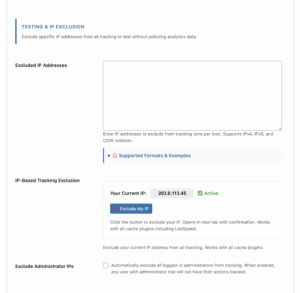
How IP Exclusion Works
When you exclude IP from Google Analytics using Advanced DataLayer Tracker, your traffic is automatically filtered across all connected analytics platforms:
- Complete tracking prevention – Your visits don’t register in GA4, Universal Analytics, Meta Pixel, TikTok Pixel, or any other platform
- Persistent exclusion – Works across all pages on your WordPress site automatically
- Cross-session memory – Exclusion remains active even after closing your browser, ensuring clean analytics data long-term
- Cache-compatible design – Works seamlessly with LiteSpeed Cache, WP Rocket, Cloudflare, and all other caching solutions
Important Notes
Device-specific: The exclusion applies to your current device and network. If you switch networks (office WiFi to home, for example), you’ll need to exclude IP address from tracking again for that network.
Clean testing environment: This is essential when you need to filter internal traffic WordPress generates during development, ensuring your production analytics remain accurate.
How to Exclude IP from Google Analytics in WordPress
Step 1: Access IP Exclusion Settings
- Log into WordPress Admin Dashboard
- Navigate to ADT Settings in the left sidebar
- Scroll to the Debug Options section
- Locate IP-Based Tracking Exclusion
Your current IP address is displayed automatically, making it easy to exclude IP address from tracking with one click.
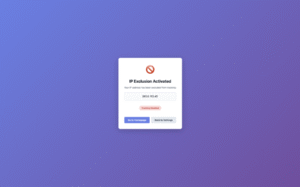
Step 2: Activate IP Exclusion
- You’ll see your current IP address next to the exclusion button
- Click the 🚫 Exclude My IP button
- A new browser tab opens showing your IP exclusion confirmation page
- Click Go to Homepage to continue testing with clean analytics data
That’s it! Your IP is now excluded from Google Analytics and all other tracking platforms. All future visits from this device and network won’t affect your analytics metrics.
Step 3: Verify Exclusion is Active
To confirm you successfully exclude internal traffic analytics:
- Open your WordPress site in a new incognito/private window
- Open browser DevTools by pressing F12
- Click the Console tab
- Look for the message:
[ADT] ⛔ Tracking blocked - IP exclusion flag found - Switch to the Network tab and refresh the page
- Verify NO tracking requests fire to:
- google-analytics.com
- facebook.net/tr
- analytics.tiktok.com
- Any other analytics endpoints
✅ Success! If you see the blocked message and no tracking requests, you’ve successfully configured IP exclusion to maintain clean analytics data.
Re-enabling Tracking (Removing IP Exclusion)
When you’re finished testing and want to resume normal tracking:
- Return to ADT Settings → Debug Options
- Click the ✅ Re-enable Tracking button
- Confirmation page confirms your IP is no longer excluded
- Your visits now contribute to analytics data again
This instantly removes the IP exclusion filter, allowing your traffic to appear in Google Analytics and all connected platforms.
Filter Internal Traffic WordPress: Managing Multiple IPs
If you need to exclude IP address from tracking for multiple team members, offices, or devices, use the Manual IP Exclusion List. This is perfect for agencies and development teams who need to maintain clean analytics data across multiple locations.
Adding Multiple IP Addresses
To filter internal traffic WordPress generates from your entire team:
- Navigate to ADT Settings → Debug Options
- Find the Manual IP Exclusion List textarea
- Enter one IP address per line (no commas or separators):
192.168.1.100203.0.113.45198.51.100.67 - Click Save Changes
All listed IPs are now excluded from Google Analytics and other tracking platforms simultaneously.
Removing Multiple IPs
To remove IPs and resume tracking for specific addresses:
- Go to the Manual IP Exclusion List
- Delete the IP addresses you want to re-enable
- Click Save Changes
The removed IPs will immediately begin contributing to your analytics data again.
Finding Your IP Address
Not sure what your IP address is?
Quick Method
Visit whatismyip.com to see your current IP address.
In ADT Settings
Your current IP is automatically displayed in the IP-Based Tracking Exclusion section.
Troubleshooting: When IP Exclusion Isn’t Working
Issue: “Tracking Still Active After Excluding IP”
Common causes when you can’t exclude IP from Google Analytics:
- Browser cache not cleared – Hard refresh the page (Ctrl+Shift+R on Windows, Cmd+Shift+R on Mac)
- IP address changed – Your ISP may have assigned a new IP. Check your current IP and exclude it again
- VPN or proxy active – You need to exclude your VPN’s IP address, not your original IP
- Mobile network difference – Mobile data uses different IPs than WiFi networks
Solution: Click the exclusion button again to ensure your current IP is properly excluded from tracking. Visit whatismyip.com to confirm your current IP address matches the excluded IP.
Issue: “Exclusion Doesn’t Persist After Browser Restart”
Common causes preventing clean analytics data:
- Private/Incognito mode exclusively – These modes clear localStorage when closed
- Browser cleaning software – CCleaner and similar tools may clear localStorage that maintains exclusion
- Strict browser privacy settings – Some browsers block localStorage entirely
Solution: Use the Manual IP Exclusion List instead. This server-side method stores your IP in the WordPress database, ensuring you can filter internal traffic WordPress generates regardless of browser storage settings.
Issue: “Exclusion Works on Desktop But Not Mobile”
Explanation: Mobile devices on cellular networks have different IP addresses than your WiFi network, requiring separate exclusion to maintain clean analytics data.
Solution:
- Same network method: Connect your mobile device to the same WiFi network as your desktop
- Separate exclusion: Visit ADT Settings from your mobile browser and exclude that IP
- Manual list method: Add both desktop and mobile IPs to the Manual IP Exclusion List
Issue: “Can’t Access Confirmation Page”
Common causes:
- Popup blocker active – The exclusion button opens in a new tab
- Browser security restrictions – Blocking new window creation
Solution: Allow popups for your WordPress admin area, or manually add your IP to the Manual IP Exclusion List field to exclude IP address from tracking without using the button.
“Works on desktop but not mobile”
Explanation: Mobile devices on cellular networks have different IP addresses than your WiFi network.
Solution:
- Connect your mobile device to the same WiFi network as your desktop
- OR exclude your mobile IP separately (visit ADT Settings from your mobile browser)
- OR use the Manual IP Exclusion List to add both IPs
Technical Details
How Exclusion Works
The IP exclusion system uses a multi-layer approach:
- Database storage – Your IP is saved to WordPress database (
adt_excluded_admin_ipsoption) - localStorage flag – Browser-local storage persists across page loads
- Client-side blocking – JavaScript prevents all tracking events from firing
Cache Compatibility
This feature is specifically designed to work with aggressive caching:
- ✅ LiteSpeed Cache – Fully compatible
- ✅ WP Rocket – Fully compatible
- ✅ W3 Total Cache – Fully compatible
- ✅ Cloudflare – Fully compatible
- ✅ All other caching plugins – Uses localStorage which bypasses cache
Privacy & Security
- No personal data stored – Only your IP address (a network identifier)
- You control the data – Can be removed anytime
- Local to your device – localStorage is browser-specific, not shared
- GDPR compliant – IP addresses used only for exclusion, not tracking
Real-World Use Cases: Maintaining Clean Analytics Data
Use Case 1: Testing New Google Analytics Implementation
Scenario: You’ve just installed GA4 tracking and want to verify events fire correctly without polluting production data.
Steps to exclude internal traffic analytics:
- Exclude IP from Google Analytics using the one-click button
- Browse your site and trigger test events (page views, clicks, conversions)
- Check GA4 DebugView to verify events appear correctly
- Confirm events don’t appear in production reports (clean analytics data maintained)
- Re-enable tracking for your IP once testing is complete
Use Case 2: Agency Client Demonstrations
Scenario: You’re presenting analytics dashboards to a client and need to browse their site during the meeting.
Steps to filter internal traffic WordPress:
- Exclude your agency’s office IP before the client meeting
- Demonstrate site features and tracking during presentation
- Your demonstration clicks don’t affect their live analytics data
- Keep exclusion active for ongoing client work to maintain data accuracy
Use Case 3: Development Team Testing
Scenario: Multiple developers are working on tracking implementations and need to test without affecting metrics.
Steps to exclude IP address from tracking for teams:
- Collect all team member IP addresses
- Add all IPs to the Manual IP Exclusion List
- Team can test freely with clean analytics data guaranteed
- Remove specific IPs when individual developers need to verify tracking works for real users
Use Case 4: E-commerce Conversion Testing
Scenario: You need to test WooCommerce checkout tracking without creating false purchase data in Google Analytics.
Steps to maintain clean analytics data:
- Exclude IP from Google Analytics before testing
- Complete test purchases through your checkout flow
- Verify purchase events fire correctly in GA4 DebugView
- Confirm test purchases don’t appear in revenue reports (data integrity maintained)
- Test abandoned cart recovery without triggering false conversion metrics
Best Practices for Clean Analytics Data
For WordPress Developers
✅ Always exclude IP from Google Analytics during development to prevent test traffic from skewing metrics
✅ Use Manual IP Exclusion List for entire development teams to filter internal traffic WordPress generates
✅ Test in incognito to verify exclusion works before deploying to production
✅ Document excluded IPs in project notes for team transparency
❌ Don’t forget to test with exclusion DISABLED before launch to ensure tracking works for real users
For Site Owners & Marketers
✅ Exclude IP address from tracking when reviewing analytics dashboards to avoid inflating metrics
✅ Re-enable tracking when not actively working on the site to capture your own conversion paths if needed
✅ Exclude office IPs if team frequently visits the site to maintain clean analytics data
❌ Never exclude customer or user IPs – only internal team members
For Digital Marketing Agencies
✅ Exclude all agency office IPs in Manual IP Exclusion List to filter internal traffic WordPress from all client sites
✅ Document exclusions in client handoff procedures to ensure new team members exclude their IPs
✅ Verify exclusions work before launching paid campaigns to guarantee accurate conversion data
✅ Train client team members how to exclude their own IPs to maintain data quality post-handoff
Frequently Asked Questions About IP Exclusion
How do I exclude my IP from Google Analytics in WordPress?
Navigate to ADT Settings → Debug Options, find the IP-Based Tracking Exclusion section, and click the 🚫 Exclude My IP button. A confirmation page opens verifying your IP is now excluded from all analytics platforms. This simple process helps you maintain clean analytics data while testing.
Does IP exclusion affect the WordPress debug overlay?
No. The debug overlay continues to work even when you exclude IP address from tracking. You can still see what events would fire if tracking were enabled, making it perfect for testing and troubleshooting while keeping your analytics data clean.
Can I exclude a range of IP addresses at once?
Not directly through the interface, but you can add multiple individual IPs to the Manual IP Exclusion List to filter internal traffic WordPress generates. For advanced IP range exclusion (e.g., 192.168.1.1-192.168.1.255), contact support.
Does excluding IP from Google Analytics work with VPNs?
Yes, but you’ll need to exclude your VPN’s IP address instead of your original IP. Note that if your VPN assigns different IPs on each connection, you may need to re-exclude frequently to maintain clean analytics data. Consider adding your VPN’s IP range to the Manual Exclusion List.
Will this affect my team’s ability to track conversions?
Only if team members are on the same IP address (e.g., same office network). Each device on a separate network needs to be excluded individually using the Manual IP Exclusion List to properly filter internal traffic WordPress generates from your team.
How do I exclude multiple office locations from analytics?
Add each office’s public IP address to the Manual IP Exclusion List, one per line. This ensures you can exclude IP from Google Analytics for all your office locations simultaneously while maintaining clean analytics data.
Can I use this to exclude mobile app traffic?
No, this feature is designed to exclude IP address from tracking for website traffic only. Mobile app traffic should be filtered in your analytics platform directly (e.g., GA4 data filters).
Does this affect conversions tracking?
Yes – excluded IPs do not send any events, including conversions. This is intentional to keep your conversion data clean.
Conclusion: Maintain Clean Analytics Data With IP Exclusion
Learning how to exclude IP from Google Analytics is essential for anyone testing tracking implementations, developing WordPress sites, or managing client analytics. By properly configuring IP exclusion, you ensure:
- Data accuracy: Test freely without inflating page views, conversions, or revenue metrics
- Better decisions: Make marketing decisions based on real user behavior, not internal testing
- Professional results: Deliver clients accurate analytics without contamination from agency traffic
- Efficient testing: Verify tracking works correctly while maintaining clean analytics data
Whether you need to exclude IP address from tracking for yourself or filter internal traffic WordPress generates from an entire team, Advanced DataLayer Tracker provides both one-click and manual list options that work with all caching plugins.
Ready to get started? Install Advanced DataLayer Tracker and exclude your IP from Google Analytics in under 30 seconds.
Related Features
Debug Mode
Enable debug mode to see detailed logging of tracking events, even when your IP is excluded. See Debug Mode Guide.
Regex Exclusion
Exclude entire URL patterns from tracking using regex. See URL Exclusion Guide.
Consent Management
Control tracking based on user consent. See Consent Management Guide.
Support
Need help with IP exclusion?
- 📧 Email: support@datalayer-tracker.com
- 📚 Documentation: Complete Knowledge Base
- 🎥 Video Tutorials: Coming Soon
Changelog
Version 1.2.0
- Initial release of IP-based exclusion
- Button-based interface for easy activation
- localStorage persistence for cache compatibility
- Manual IP list for multiple addresses
Last updated: November 2025