
Google Tag Manager (GTM) Setup Guide
This WordPress GTM setup guide shows you how to install and configure Google Tag Manager on your WordPress site using Advanced DataLayer Tracker’s automated container export system.
Table of Contents
- What is GTM Export?
- Why Use GTM with ADT?
- Prerequisites
- Quick Setup (10 Minutes)
- Detailed Setup Instructions
- What’s Included in the Export
- Customizing Your Container
- Testing and Validation
- Advanced Configuration
- Troubleshooting
- Best Practices
What is WordPress GTM Setup with Container Export?
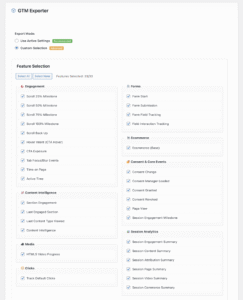
GTM Export is ADT’s automated Google Tag Manager container builder that generates a complete, ready-to-use GTM container specifically configured for your WordPress site.
How It Works:
- You configure which features to include (forms, video, ecommerce, etc.)
- ADT generates a GTM JSON file with all necessary tags, triggers, and variables
- You import this JSON into Google Tag Manager
- Publish the container
- All events automatically flow from your site → GTM → GA4/other platforms
Benefits:
- Zero Manual Configuration: No creating tags one by one
- Best Practices Built-In: Professional GTM architecture
- Instant Setup: 10 minutes vs. hours of manual configuration
- Always Accurate: Tags perfectly match ADT’s dataLayer structure
- Easy Updates: Re-export anytime to add new features
Why Use GTM with ADT?
This WordPress GTM setup guide demonstrates how ADT and Google Tag Manager work together to create enterprise-grade tracking.
The Power of GTM + ADT
ADT Provides:
- Rich dataLayer with all events
- Session tracking
- User behavior data
- E-commerce events
- Form/video tracking
GTM Enables:
- Send data to multiple platforms (GA4, Meta, TikTok, etc.)
- A/B testing tool integrations
- Custom business logic
- Marketing automation triggers
- No-code event routing
Together:
WordPress Site (ADT) → dataLayer (events) → GTM (routing) → All Your Platforms
When to Use GTM Export
✅ Use GTM Export If:
- You want to send data to GA4 via GTM
- You use multiple marketing platforms (Meta, TikTok, LinkedIn, etc.)
- You need flexible event routing and filtering
- You want to add custom tags later
- Your marketing team needs no-code control
- You use A/B testing tools (Optimizely, VWO, etc.)
❌ Skip GTM If:
- You only need GA4 tracking (use GA4 MP server-side instead)
- You want maximum simplicity (direct GA4 connection simpler)
- You don’t need multiple platforms
- You prefer pure server-side tracking
Best Practice: Most sites benefit from GTM’s flexibility, even if starting with just GA4.
WordPress GTM Setup Prerequisites
Before starting this WordPress GTM setup guide, ensure you have:
Required Items
✅ Google Tag Manager Account
- Free account at tagmanager.google.com
- Container created for your website
- Admin or Publish access
✅ Google Analytics 4 Property
- GA4 property set up
- Measurement ID ready (G-XXXXXXXXXX)
- Optional: Can be configured later
✅ WordPress Admin Access
- ADT plugin installed and activated
- Admin permissions
✅ GTM Container Installed on Site
- GTM snippet in your site’s
<head> - Container ID noted (GTM-XXXXXXX)
Don’t have GTM installed yet? See GTM Installation section below.
Time Required
- Quick Setup: 10 minutes
- With Testing: 20 minutes
- Full Customization: 30-60 minutes
Quick WordPress GTM Setup (10 Minutes)
Step 1: Install GTM on Your Site (If Not Already Installed)
Using ADT’s Built-In GTM Integration (Recommended):
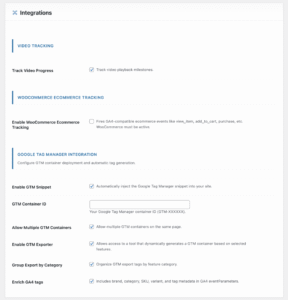
- Go to: WordPress Admin → Settings → Advanced DataLayer → General Settings
- Find: GTM Container ID field
- Enter your Container ID:
GTM-XXXXXXX - Click Save Changes
That’s it! ADT automatically:
- Injects GTM code in the correct location
- Initializes the dataLayer properly
- Ensures perfect integration with ADT events
Alternative: If you already have GTM installed via another method (theme, different plugin), that’s fine too – ADT will detect it and use the existing implementation.
To verify GTM is connected:
- Visit your website
- Right-click → Inspect Element
- Search for your Container ID (GTM-XXXXXXX)
- Should appear in page source
Option B: Manual Installation
- Get your GTM snippet from tagmanager.google.com
- Copy the
<head>snippet - Add to your theme’s
header.phpor use a snippet plugin - Copy the
<body>snippet - Add right after opening
<body>tag
Verify Installation:
1. Open your site in a browser
2. Right-click → Inspect Element
3. Search for "GTM-" in the page source
4. Should find your container ID
Step 2: Configure ADT Features
Navigate to ADT settings:
WordPress Admin → Settings → Advanced DataLayer → GTM Export Tab
Select Features to Include:
Core Features:
☑ Page View Tracking
☑ Session Tracking
☑ Scroll Tracking
☑ Click Tracking

Engagement:
☑ User Engagement Events
☑ Active Time Tracking

Forms:
☑ Form Tracking
☑ Form Vendors (if using Gravity Forms, etc.)

Video:
☑ Video Progress Tracking
☑ YouTube/Vimeo Support

E-Commerce (WooCommerce users):
☑ E-Commerce Events
☑ Enhanced E-Commerce

Advanced:
☐ Custom Events (if you have custom tracking)
Enter Your GA4 Measurement ID:
Field: GA4 Measurement ID
Value: G-XXXXXXXXXX
Help: Find in GA4 → Admin → Data Streams → Your Stream
Enter Your GTM Container ID:
Field: GTM Container ID
Value: GTM-XXXXXXX
Help: Find at top of GTM interface
Step 3: Export GTM Container
Still in the GTM Export tab:
- Review your feature selections
- Click “Export GTM Container JSON”
- A file downloads:
adt-gtm-export-YYYY-MM-DD-HH-MM-SS.json - Save this file (you’ll import it in next step)
Step 4: Import to Google Tag Manager
- Open Google Tag Manager
- Select your container (GTM-XXXXXXX)
- Click Admin (bottom left)
- Click Import Container
- Click Choose container file
- Select the JSON file you downloaded from ADT
- Choose a workspace:
- Existing workspace (if you have one)
- New (recommended for clean import)
- Import option:
- Select “Merge” (preserves existing tags)
- Or “Overwrite” (clean slate – use caution!)
- Click Confirm
Result: GTM imports all tags, triggers, and variables from ADT.
Step 5: Preview and Publish
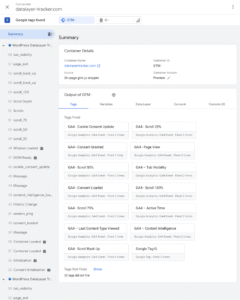
Preview Mode:
- In GTM, click Preview (top right)
- Enter your website URL
- Click Connect
- New window opens showing GTM debug interface
Verify Events:
1. Navigate your site
2. Check "Tags Fired" in GTM Preview
3. Look for "GA4 Event - [event_name]" tags
4. Should fire for page views, clicks, scrolls, etc.
Publish Container:
1. If preview looks good, click "Submit" (top right)
2. Add version name: "ADT Initial Setup - [date]"
3. Add description: "Imported ADT container with [features]"
4. Click "Publish"
You’re done! Events now flow: Your Site → dataLayer → GTM → GA4.
Detailed WordPress GTM Setup Instructions
GTM Installation (If Not Already Installed)
Creating a GTM Account and Container
- Go to tagmanager.google.com
- Click Create Account
- Account Setup:
- Account Name: Your company name
- Country: Your country
- ☑ Share data anonymously with Google
- Container Setup:
- Container name: Your website URL (e.g., “www.yoursite.com”)
- Target platform: Web
- Click Create
- Accept Terms of Service
- Copy Container Code (shown in popup)
Installing GTM Code on WordPress
Option 1: Using Plugin (Recommended for Beginners)
- In WordPress, go to Plugins → Add New
- Search: “Google Tag Manager for WordPress”
- Install: “GTM4WP” by Thomas Geiger
- Activate plugin
- Go to Settings → Google Tag Manager
- Basic Settings:
- Google Tag Manager ID:
GTM-XXXXXXX - ☑ Include dataLayer (CRITICAL – must be checked)
- Google Tag Manager ID:
- Advanced Settings (Optional but Recommended):
- ☑ Track logged-in users
- ☐ Exclude admins (uncheck for testing)
- Save Changes
Option 2: Manual Installation
Get GTM Code: From GTM interface, click your container ID (top right) to see code snippets.
Head Snippet (add to theme’s header.php before </head>):
<!-- Google Tag Manager -->
<script>(function(w,d,s,l,i){w[l]=w[l]||[];w[l].push({'gtm.start':
new Date().getTime(),event:'gtm.js'});var f=d.getElementsByTagName(s)[0],
j=d.createElement(s),dl=l!='dataLayer'?'&l='+l:'';j.async=true;j.src=
'https://www.googletagmanager.com/gtm.js?id='+i+dl;f.parentNode.insertBefore(j,f);
})(window,document,'script','dataLayer','GTM-XXXXXXX');</script>
<!-- End Google Tag Manager -->
Body Snippet (add right after opening <body> tag):
<!-- Google Tag Manager (noscript) -->
<noscript><iframe src="https://www.googletagmanager.com/ns.html?id=GTM-XXXXXXX"
height="0" width="0" style="display:none;visibility:hidden"></iframe></noscript>
<!-- End Google Tag Manager (noscript) -->
Verify Installation:
- Visit your website
- Open browser Developer Tools (F12)
- Go to Console tab
- Type:
google_tag_manager - Should see GTM object (not “undefined”)
What’s Included in the Export
Container Components
Every ADT GTM export includes:
- Tags – Fire when events occur (send data to GA4, pixels, etc.)
- Triggers – Define when tags fire (page load, click, custom event)
- Variables – Store and retrieve data values (event parameters, user properties)
Core Tags (Always Included)
1. GA4 Configuration Tag
Purpose: Initialize GA4 tracking
Fires: All Pages
Parameters: Measurement ID, Cookie settings
2. Page View Tag
Event: page_view
Fires: Every page load
Parameters: page_path, page_title, referrer
3. Scroll Depth Tag
Event: scroll
Fires: 25%, 50%, 75%, 90%, 100% scroll milestones
Parameters: scroll_depth
Form Tracking Tags
1. Form View
Event: form_view
Fires: When form detected on page
Parameters: form_id, form_name, form_vendor
2. Form Start
Event: form_start
Fires: User focuses first form field
Parameters: form_id, form_name, form_fields
3. Form Submit
Event: form_submit
Fires: Form successfully submitted
Parameters: form_id, form_name, form_destination
4. Form Error (if enabled)
Event: form_error
Fires: Form validation fails
Parameters: form_id, error_message
Video Tracking Tags
1. Video Start
Event: video_start
Fires: Video begins playing
Parameters: video_title, video_provider, video_url
2. Video Progress
Event: video_progress
Fires: 10%, 25%, 50%, 75%, 90% milestones
Parameters: video_title, video_percent, video_current_time
3. Video Complete
Event: video_complete
Fires: Video watched to 100%
Parameters: video_title, video_duration
E-Commerce Tags (WooCommerce)
1. View Item
Event: view_item
Fires: Product page view
Parameters: items[], currency, value
2. Add to Cart
Event: add_to_cart
Fires: Product added to cart
Parameters: items[], currency, value
3. Remove from Cart
Event: remove_from_cart
Fires: Product removed from cart
Parameters: items[], currency, value
4. View Cart
Event: view_cart
Fires: Cart page viewed
Parameters: items[], currency, value
5. Begin Checkout
Event: begin_checkout
Fires: Checkout page loaded
Parameters: items[], currency, value
6. Add Payment Info (enhanced ecommerce)
Event: add_payment_info
Fires: Payment method selected
Parameters: items[], payment_type, currency, value
7. Purchase
Event: purchase
Fires: Order completed (thank you page)
Parameters: transaction_id, value, tax, shipping, items[], coupon
Engagement Tags
1. Click Tracking
Event: click
Fires: Important element clicks
Parameters: click_text, click_url, click_element, click_classes
2. Outbound Link Clicks
Event: outbound_click
Fires: External link clicked
Parameters: link_url, link_domain
3. File Downloads
Event: file_download
Fires: PDF, DOC, ZIP, etc. downloads
Parameters: file_name, file_extension, file_url
4. User Engagement
Event: user_engagement
Fires: User actively engaged 30+ seconds
Parameters: engagement_time_msec
Variables Included
Data Layer Variables (DLV):
- event name
- page_path, page_title, page_location
- session_id, user_id
- form_id, form_name, form_vendor
- video_title, video_provider, video_percent
- transaction_id, value, currency, items
- scroll_depth
- click_text, click_url
- And 50+ more depending on features enabled
Built-In Variables:
- Page URL, Page Path, Page Hostname
- Referrer
- Click Element, Click Classes, Click ID, Click URL, Click Text
- Form Element, Form Classes, Form ID
Triggers Included
Page View Triggers:
- All Pages
- DOM Ready
- Window Loaded
Scroll Triggers:
- Scroll Depth (25%, 50%, 75%, 90%, 100%)
Click Triggers:
- All Element Clicks
- Link Clicks Only
- Download Links
- Outbound Links
Custom Event Triggers:
- One for each event type (form_submit, video_start, add_to_cart, etc.)
Timer Triggers:
- User Engagement (30 second timer)
Customizing Your Container
After Import Modifications
Adding Additional GA4 Properties
Scenario: Send events to both production and dev GA4 properties
Steps:
- Go to GTM Variables
- Edit “GA4 CONFIG” variable
- Change type to “Lookup Table”
- Configuration:
Input Variable: {{Page Hostname}}
Rows:
- www.yoursite.com → G-PRODUCTION123
- dev.yoursite.com → G-DEV456
Default: G-PRODUCTION123
- Save
Adding Third-Party Pixels
Example: Facebook Pixel Purchase Event
- In GTM, go to Tags → New
- Tag Configuration: Custom HTML
- HTML:
<script>
fbq('track', 'Purchase', {
  value: {{DLV - value}},
  currency: {{DLV - currency}},
  content_ids: [{{DLV - transaction_id}}]
});
</script>
- Triggering: Custom Event →
purchase - Save: Name it “Facebook Pixel – Purchase”
Tip: ADT Premium includes Universal Pixel Manager for easier multi-platform setup.
Event Filtering
Example: Only track purchases over $50
- Edit the “GA4 Event – purchase” trigger
- This trigger fires on: Some Custom Events
- Event name equals:
purchase - AND {{DLV – value}} greater than 50
- Save
Adding Custom Parameters to All Events
Example: Send user role to GA4
- Go to Variables → New
- Type: Data Layer Variable
- Data Layer Variable Name:
user_role - Save as: “DLV – user_role”
- Edit “GA4 – Config” tag
- User Properties:
- Property Name:
user_role - Value:
{{DLV - user_role}}
- Property Name:
- Save
Result: All GA4 events include user_role parameter.
Testing and Validation
After completing this WordPress GTM setup guide, use these testing methods to verify your configuration:
GTM Preview Mode
How to Access:
- In GTM, click Preview (top right)
- Enter your website URL
- Click Connect
- New browser tab opens with debug panel
What to Verify:
Tags Fired Section:
- Navigate your site
- Trigger events (scroll, click, fill form, etc.)
- Check that correct tags fire
- Click tag name to see details
Tags Not Fired Section:
- Shows tags that could have fired but didn’t
- Helps diagnose trigger issues
Variables Section:
- Click any tag to see variables used
- Verify values are correct
- Check for “undefined” or empty values
Data Layer Tab:
- See all dataLayer pushes chronologically
- Verify event structure
- Check parameter names and values
GA4 DebugView
Enable Debug Mode:
While in GTM Preview, debug mode is automatically enabled for GA4.
View Events:
- Open Google Analytics
- Go to Configure → DebugView
- Events appear in real-time as you navigate your site
What to Check:
- All expected events appearing?
- Event parameters present and correct?
- No errors or warnings?
Real-Time Reports
View in GA4:
Google Analytics → Reports → Realtime
Verify:
- Event count increasing
- Correct event names appearing
- Geographic data showing
- Device categories correct
Note: Real-time reports have ~30-60 second delay
Console Verification
Check dataLayer:
// Open browser console (F12), type:
window.dataLayer

// Should see array of events:
[
  {gtm.start: 1234567890, event: "gtm.js"},
  {event: "page_view", page_path: "/", page_title: "Home"},
  {event: "scroll", scroll_depth: 50}
]
View Last Event:
window.dataLayer[window.dataLayer.length - 1]
Advanced Configuration
Consent Mode Integration
What is Consent Mode?
Google’s framework for respecting user privacy preferences while maintaining some data collection.
ADT Auto-Detection:
ADT automatically detects these consent platforms:
- OneTrust
- Cookiebot
- CookieYes
- Complianz
- Iubenda
- Custom consent implementations
GTM Setup:
1. Add Consent Initialization Tag:
Tag Type: Consent Initialization - Google Consent Mode
Trigger: Consent Initialization - All Pages
Default Values:
- ad_storage: denied
- analytics_storage: denied
- functionality_storage: denied
- personalization_storage: denied
2. Add Consent Update Trigger:
Trigger Type: Custom Event
Event name: consent_update
3. Add Consent Update Tag:
Tag Type: Consent Mode - Update
Trigger: Custom Event - consent_update
Update Values:
- ad_storage: {{DLV - ad_storage}}
- analytics_storage: {{DLV - analytics_storage}}
ADT Handles the Rest:
ADT automatically pushes consent updates:
{
  event: 'consent_update',
  ad_storage: 'granted', // or 'denied'
  analytics_storage: 'granted',
  consent_platform: 'OneTrust'
}
Cross-Domain Tracking
Scenario: Track users across yoursite.com and checkout.yoursite.com
ADT Configuration:
Settings → Advanced → Cross-Domain Tracking
☑ Enable
Domains: yoursite.com, checkout.yoursite.com
GTM Configuration:
- Edit “GA4 – Config” tag
- Fields to Set:
Field Name: linker
Value: {
  "domains": ["yoursite.com", "checkout.yoursite.com"]
}
- Save and publish
Verification:
- Click link from yoursite.com to checkout.yoursite.com
- Check URL for
_gl=parameter - Session should continue (not new session_start)
Server-Side Tagging
What is Server-Side GTM?
A GTM container running on Google Cloud that receives events from your website and distributes them to platforms server-side.
Benefits:
- First-party cookies
- Bypass ad blockers
- Enhanced security
- Reduced browser payload
Using with ADT:
Option 1: ADT GA4 Measurement Protocol (Simpler)
- Use ADT’s built-in server-side GA4 tracking
- No GCP hosting costs
- Easier setup
- See GA4 Setup Guide
Option 2: Server-Side GTM Container (Advanced)
- Requires Google Cloud Platform setup
- More complex but supports multiple platforms server-side
- Works alongside ADT GTM export
Recommendation: For most users, ADT’s GA4 MP feature is simpler and sufficient.
Troubleshooting
Import Issues
Issue: “Container format not supported”
Solution:
- Ensure you’re using latest ADT version
- Re-export container
- Check GTM account is up-to-date
Issue: “Duplicate names found”
Solution:
- Choose “Merge” import option (not Overwrite)
- Or create new workspace for clean import
- Review and remove old duplicate tags after verification
Issue: “Invalid JSON file”
Solution:
- Clear browser cache
- Disable browser extensions
- Re-export from ADT
- Try different browser
- Verify file size (should be 50KB+)
Events Not Firing
Issue: dataLayer is undefined
Solution:
- Verify GTM installed correctly
- Check container ID matches
- Ensure dataLayer initialized before GTM
Issue: Events in dataLayer but tags don’t fire
Solution:
- Check GTM Preview mode
- Review trigger conditions
- Verify event name matches exactly (case-sensitive)
Issue: Tags firing multiple times
Solution:
- Check for duplicate GTM containers
- Review trigger settings
- Look for conflicting manual tracking code
GA4 Reporting Issues
Issue: Events in DebugView but not reports
Causes:
- Data filters excluding events
- Events not marked as key events
- Reporting identity misconfigured
- Need to wait 24-48 hours
Solutions:
- Check GA4 data filters
- Mark events as key events
- Verify reporting identity settings
- Wait 24-48 hours for data processing
Best Practices
Container Management
1. Use Workspaces
- Never edit published container directly
- Create workspace: “ADT Update [date]”
- Test thoroughly
- Publish with descriptive version name
2. Version Control
Format: "[Change Type] - [Description] - [Date]"
Examples:
- "Import - ADT Initial Setup - 2024-01-15"
- "Update - Added Form Tracking - 2024-02-20"
- "Fix - Corrected Purchase Event - 2024-03-10"
3. Regular Exports
- Monthly: Export container JSON as backup
- Before major changes: Export current state
- Store in version control or secure location
Performance
1. Minimize Tags
- Only enable features you use
- Remove unused tags periodically
- Use built-in variables over custom JS
2. Optimize Triggers
- Use specific triggers (not “All Elements”)
- Limit timer frequency
- Batch similar events when possible
3. Async Everything
- GTM loads async by default (good!)
- Don’t block page load with tags
- Use DOM Ready/Window Loaded for non-critical tags
Data Quality
1. Consistent Naming
✓ Good: form_submit, add_to_cart, page_view
✗ Bad: formSubmit, AddToCart, pageView
2. Test Everything
1. GTM Preview mode (mandatory)
2. GA4 DebugView (verify structure)
3. Real-time reports (production check)
4. Wait 24-48 hours (historical reports)
3. Document Changes
- Add notes to tags explaining purpose
- Maintain external changelog
- Document custom events and parameters
Security
1. Access Control
Admin: 1-2 people only
Editor: Can create but not publish
Reviewer: Preview only
Viewer: Read-only
2. Never Send PII
✗ Don't send: emails, phone numbers, full names, addresses
✓ OK to send: user IDs, hashed emails, aggregated data
3. Regular Audits
Monthly: Review active tags
Quarterly: Remove unused components
Yearly: Rebuild from fresh ADT export
FAQ
Q: Can I use GTM and GA4 Measurement Protocol together? A: Yes! This is “dual tracking” mode. Events fire both to GTM (client-side) and server-side for maximum reliability.
Q: Will re-exporting from ADT overwrite my custom tags? A: No, if you use “Merge” import option. Your custom tags remain, only ADT tags update.
Q: How often should I re-export from ADT? A: Quarterly, or when enabling new ADT features. Picks up plugin improvements.
Q: Can I use this with existing GTM setup? A: Yes! Import with “Merge” option. ADT tags coexist with your existing tags.
Q: Do I need GTM if I’m using GA4 Measurement Protocol? A: Not for GA4 only. But GTM enables sending to multiple platforms (Meta, TikTok, etc.) easily.
Q: Can I edit ADT-created tags? A: Yes, but document changes. They’ll revert if you re-import ADT container.
Q: What’s the difference between ADT GTM Export and manual GTM setup? A: ADT export: instant, accurate, best practices. Manual: hours of work, error-prone, requires GTM expertise.
Support
Plugin Support:
WordPress Admin → Advanced DataLayer → Support
Additional Documentation:
- GA4 Setup Guide
- Complete Event Documentation
- Developer Reference
GTM Resources:
Summary
Following this WordPress GTM setup guide ensures your Google Tag Manager container is properly configured with all necessary tags, triggers, and variables.
Setup Checklist:
- ✅ GTM installed on site
- ✅ ADT features configured
- ✅ Container exported from ADT
- ✅ JSON imported to GTM
- ✅ Preview mode tested
- ✅ Events verified in GA4
- ✅ Container published
Next Steps:
- Monitor GA4 reports for 48 hours
- Review event quality and volume
- Add custom tags as needed (Facebook Pixel, etc.)
- Set up audiences and conversions in GA4
- Create dashboards for key metrics
Maintenance:
- Weekly: Spot-check GTM Preview
- Monthly: Review GA4 data quality
- Quarterly: Re-export ADT container
- Yearly: Full container audit
Ready to track everything? Your GTM container is now configured for comprehensive website analytics. Happy tracking!